
Background
I recently installed PowerToys (v0.96) on a fresh Windows 10 22H2 (Build 2009, 19045.6456). However, PowerRename was completely missing from both the standard context menu and the Shift+Right-click menu.
I attempted all the standard troubleshooting steps:
- Checked registry settings, restarted the system/Explorer—no luck.
- Reinstalled the software, and even rolled back to v0.88 and v0.7x (older architecture versions)—still no luck.
- Checked with ShellExView:
PowerRenameContextMenu Classstatus showed as Enabled (Green).
This was extremely weird: the registry said it was enabled, the files were present, but the menu just wouldn’t show up.
The problem wasn’t the software itself, but Windows’ “fault isolation” mechanism. Here is the investigation process.
Investigation
Since ShellExView showed the extension as enabled, the standard registry entries were likely fine. I suspected that Windows Explorer was somehow “refusing” to load it.
I used Process Explorer to search for handles or DLLs related to PowerRename.
[Insert Screenshot of Process Explorer]
Caption: Searching for “PowerRename” in Process Explorer. The result shows that only
PowerToys.exeloadedPowerToys.PowerRenameExt.dll.
The phenomenon is clear: Explorer was not loading this DLL at all.
Root Cause Analysis
Windows Explorer has a protection mechanism: if a Shell Extension causes Explorer to crash, hang, or time out during loading (which might happen during a conflict at the moment of installation), Windows will silently add the extension’s CLSID to a system-level “Blocklist”.
Once on this list, Explorer will permanently ignore the extension, regardless of how many times you reinstall the software (since uninstallers usually don’t dare touch the system-level Blocked registry key).
Solution
Check the Shell Extension Blocklist in the registry.
Navigate to:
HKEY_LOCAL_MACHINE\SOFTWARE\Microsoft\Windows\CurrentVersion\Shell Extensions\Blocked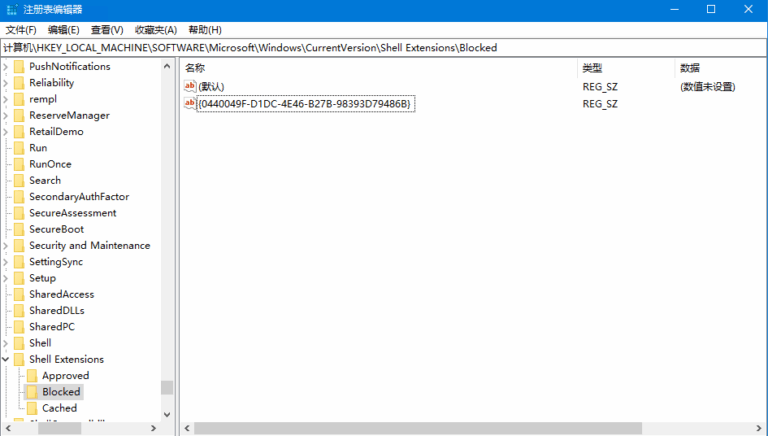
{0440049F-D1DC-4E46-B27B-98393D79486B}.The CLSID for PowerRename is exactly {0440049F-D1DC-4E46-B27B-98393D79486B}.
Simply delete this key value and restart Explorer.
If File Locksmith is missing, check for {E5235BAE-8628-4E57-9694-D1F3780D21B7} in the same location.
Summary
If reinstalling doesn’t work and ShellExView shows the extension as Enabled, it is likely trapped in Windows Shell Extensions\Blocked. Instead of wasting time on software configurations, check the registry blocklist directly.